
OpenCellID: Get Your API Key and Download Tower Data
CellInfo can use OpenCellID data in two ways: by searching online with your own OpenCellID API key, or by searching a local tower database that you download and import into the app.
1. Create your own OpenCellID account
OpenCellID API keys are personal keys issued by OpenCellID. CellInfo does not provide a key, and you should never publish your key in screenshots, support messages or public posts.
- Open OpenCellID registration.
- Create your account and sign in.
- Open the API access area and copy your API access token.
- Keep the token private. It authorises OpenCellID lookups and dataset downloads.
2. Open the OpenCellID download page
After signing in, open the OpenCellID data downloads page. Enter your token if requested, then expand Country-specific exports.
Use the table’s Search box to filter by MCC, the Mobile Country Code. It is not the individual network operator code (MNC).
Example: United Kingdom
Enter 234 and select United Kingdom with country code UK. Download the 234 file shown in that row. Always check the country name before downloading.
Example: United States of America
Enter 310 and select United States of America with country code US. The row can list several US MCC files, including 310, 311, 312, 313 and 314. Download 310 for the main US dataset, or additional US MCC files for broader coverage.
3. Keep the downloaded file unchanged
OpenCellID files may be supplied as .csv, .csv.gz or .zip. Keep the original format. Do not add a header row, rename columns or edit the data in a spreadsheet.
CellInfo can import these formats directly. Large files can exceed spreadsheet limits, so keeping the compressed file is usually simplest. OpenCellID exports are database snapshots and their record counts can change. OpenCellID attribution is required when its data is displayed or redistributed.
4. Import the file into CellInfo
Open CellInfo and go to Settings → Offline OpenCellID Tower Lookup.
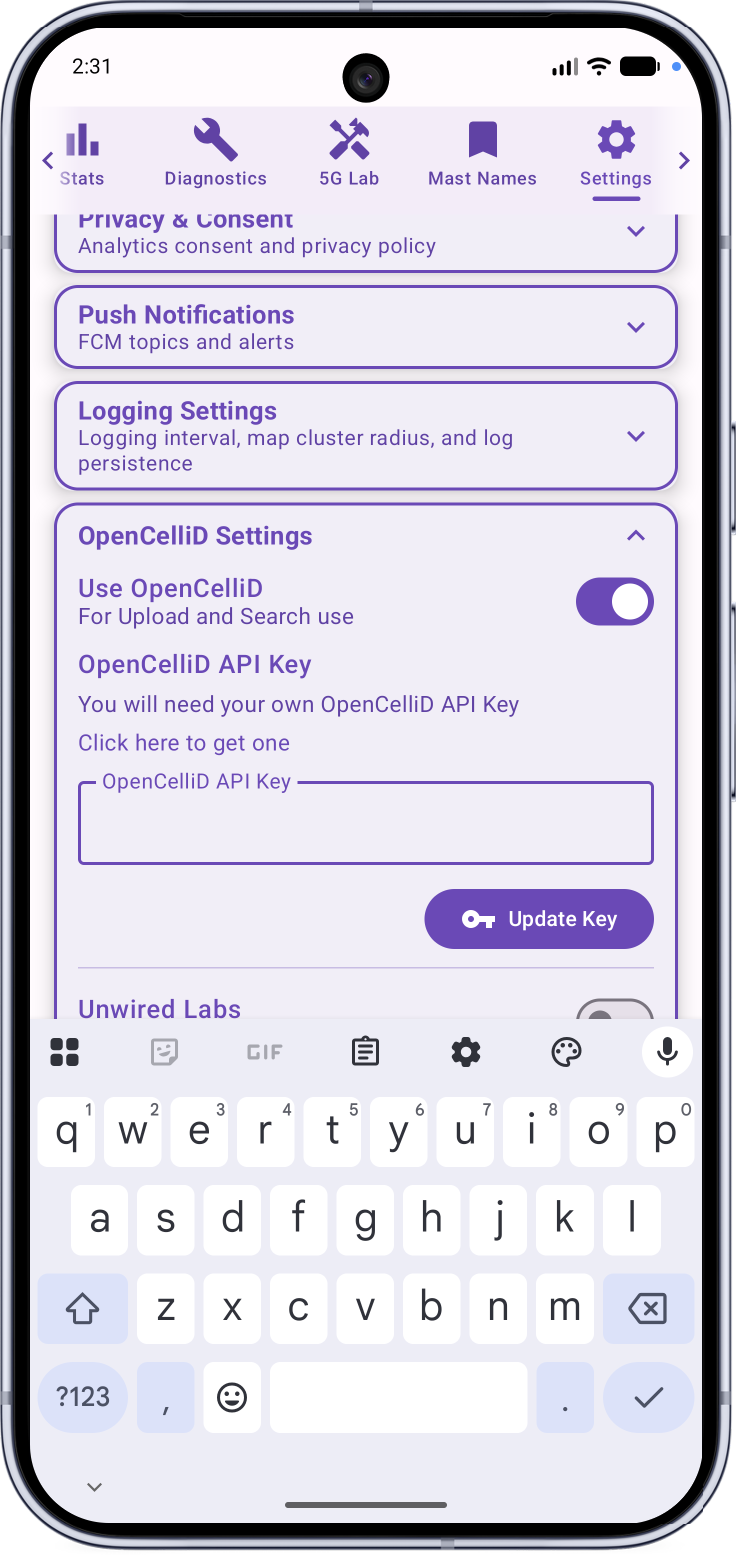
Enter your own OpenCellID API key when using online OpenCellID features.
The CSV import is optional: you can use the API key with or without local CSV data.
Imported CSV data is especially useful where mobile or internet coverage is poor.
Before importing local tower data
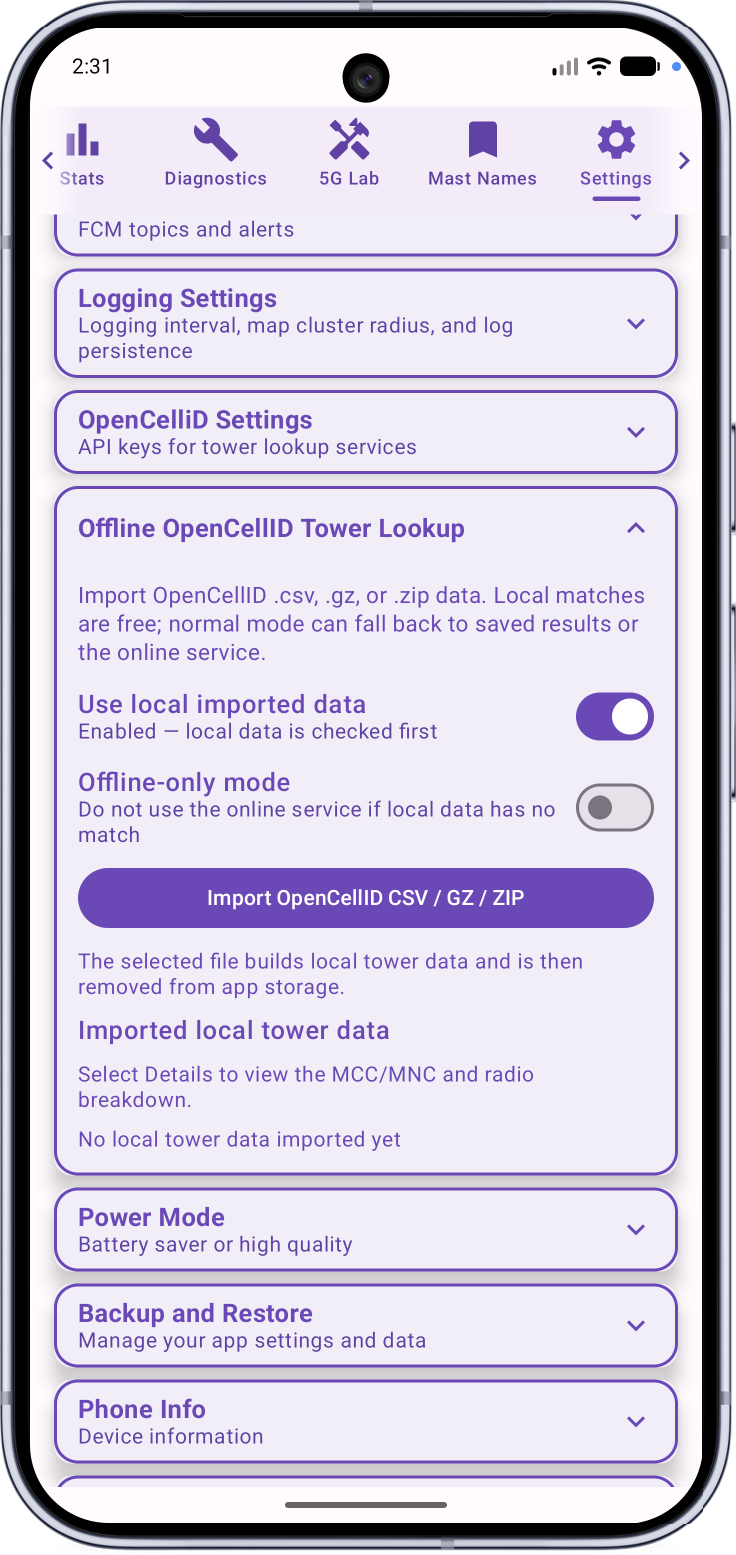
Before import, CellInfo shows that no local tower data is available.
Import and use Offline-only Mode
Select Import OpenCellID CSV / GZ / ZIP and choose the file you downloaded. CellInfo indexes the records locally and removes its temporary working copy after processing. The original file remains wherever you saved it.
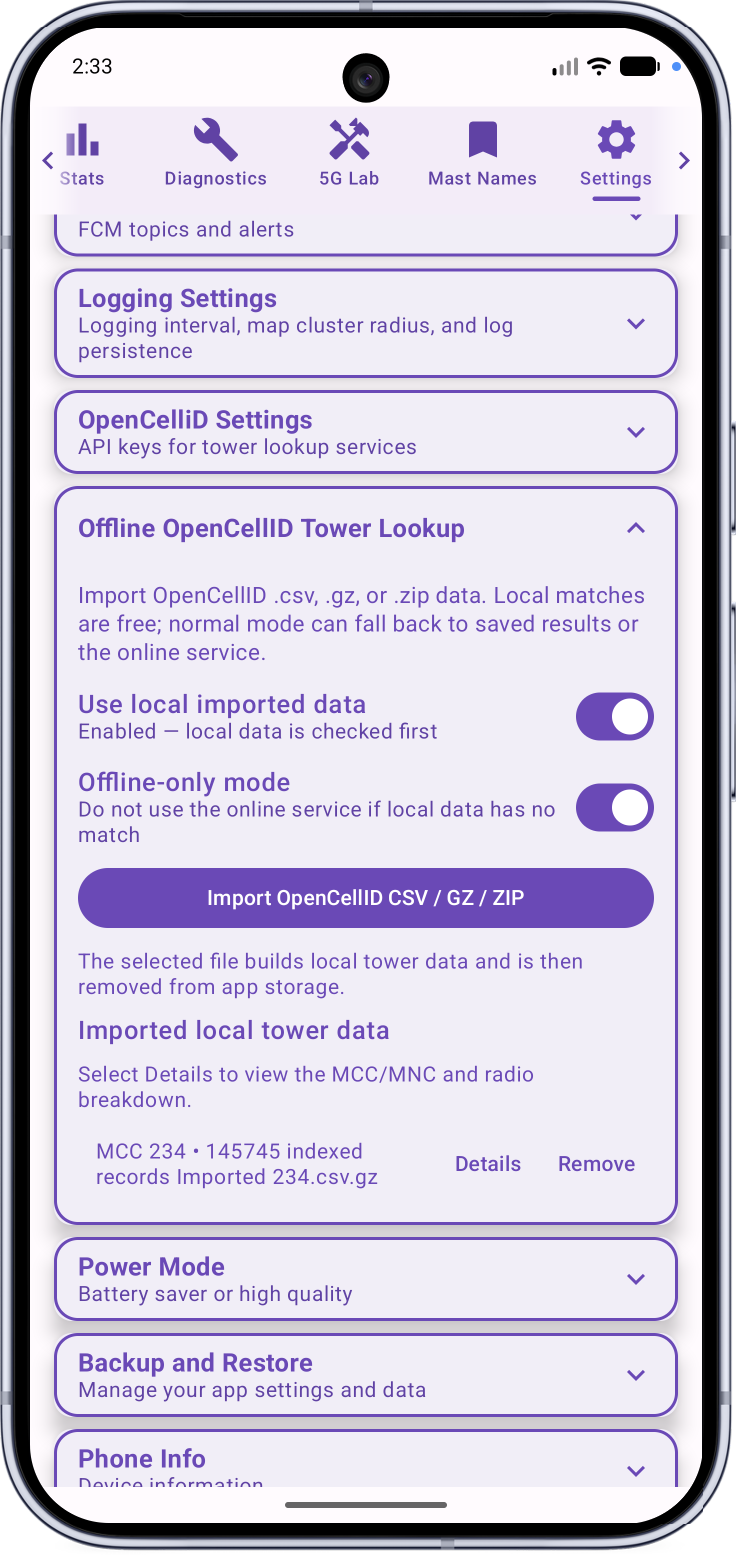
After import, local records are indexed.
Enable Offline-only mode to use the CSV data without making online tower requests.
- Use local imported data: checks the local database first.
- Offline-only mode: prevents fallback to online lookup when local data has no match.
- Normal mode: can continue to saved results or online lookup if local data has no match.
The imported local tower database is separate from Mast Names, signal logs and saved nearby-search results.